

Running KVBM in vLLM
This guide explains how to leverage KVBM (KV Block Manager) to manage KV cache and do KV offloading in vLLM.
To learn what KVBM is, please check here
Quick Start
To use KVBM in vLLM, you can follow the steps below:
Docker Setup
Aggregated Serving with KVBM
Disaggregated Serving with KVBM
Configure or tune KVBM cache tiers (choose one of the following options):
You can also use “DYN_KVBM_CPU_CACHE_OVERRIDE_NUM_BLOCKS” or “DYN_KVBM_DISK_CACHE_OVERRIDE_NUM_BLOCKS” to specify exact block counts instead of GB
When disk offloading is enabled, to extend SSD lifespan, disk offload filtering would be enabled by default. The current policy is only offloading KV blocks from CPU to disk if the blocks have frequency equal or more than 2. Frequency is determined via doubling on cache hit (init with 1) and decrement by 1 on each time decay step.
To disable disk offload filtering, set DYN_KVBM_DISABLE_DISK_OFFLOAD_FILTER to true or 1.
Sample Request
Alternatively, can use vllm serve directly to use KVBM for aggregated serving:
Enable and View KVBM Metrics
Follow below steps to enable metrics collection and view via Grafana dashboard:
View grafana metrics via http://localhost:3000 (default login: dynamo/dynamo) and look for KVBM Dashboard
KVBM currently provides following types of metrics out of the box:
kvbm_matched_tokens: The number of matched tokenskvbm_offload_blocks_d2h: The number of offload blocks from device to hostkvbm_offload_blocks_h2d: The number of offload blocks from host to diskkvbm_offload_blocks_d2d: The number of offload blocks from device to disk (bypassing host memory)kvbm_onboard_blocks_d2d: The number of onboard blocks from disk to devicekvbm_onboard_blocks_h2d: The number of onboard blocks from host to devicekvbm_host_cache_hit_rate: Host cache hit rate (0.0-1.0) from sliding windowkvbm_disk_cache_hit_rate: Disk cache hit rate (0.0-1.0) from sliding window
Troubleshooting
-
If enabling KVBM does not show any TTFT perf gain or even perf degradation, one potential reason is not enough prefix cache hit on KVBM to reuse offloaded KV blocks. To confirm, please enable KVBM metrics as mentioned above and check the grafana dashboard
Onboard Blocks - Host to DeviceandOnboard Blocks - Disk to Device. If observed large number of onboarded KV blocks as the example below, we can rule out this cause: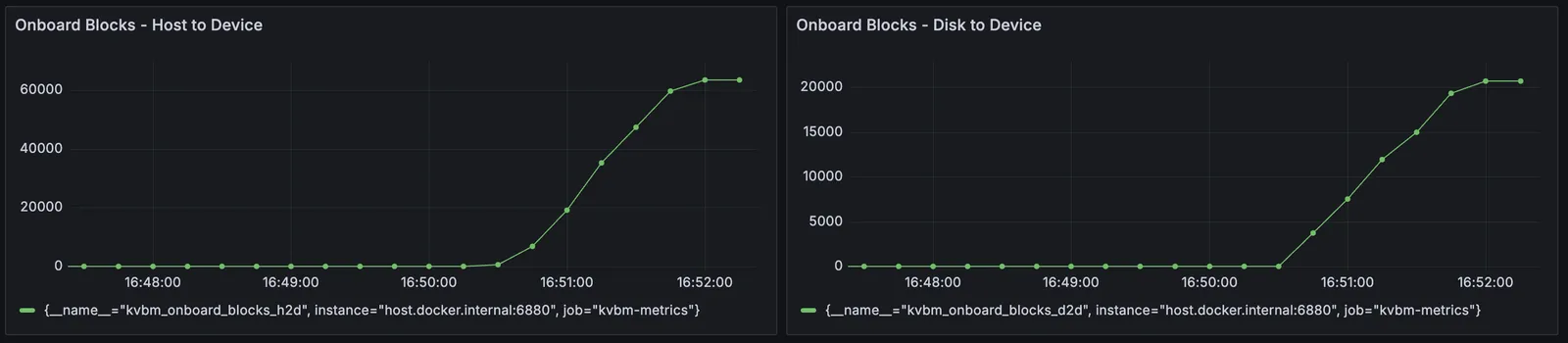
-
Allocating large memory and disk storage can take some time and lead to KVBM worker initialization timeout. To avoid it, please set a longer timeout (default 1800 seconds) for leader–worker initialization.
- When offloading to disk is enabled, KVBM could fail to start up if fallocate is not supported to create the files. To bypass the issue, please use disk zerofill fallback.
Benchmark KVBM
Once the model is loaded ready, follow below steps to use LMBenchmark to benchmark KVBM performance:
More details about how to use LMBenchmark could be found here.
NOTE: if metrics are enabled as mentioned in the above section, you can observe KV offloading, and KV onboarding in the grafana dashboard.
To compare, you can run vllm serve Qwen/Qwen3-0.6B to turn KVBM off as the baseline.
Developing Locally
Inside the Dynamo container, after changing KVBM related code (Rust and/or Python), to test or use it: